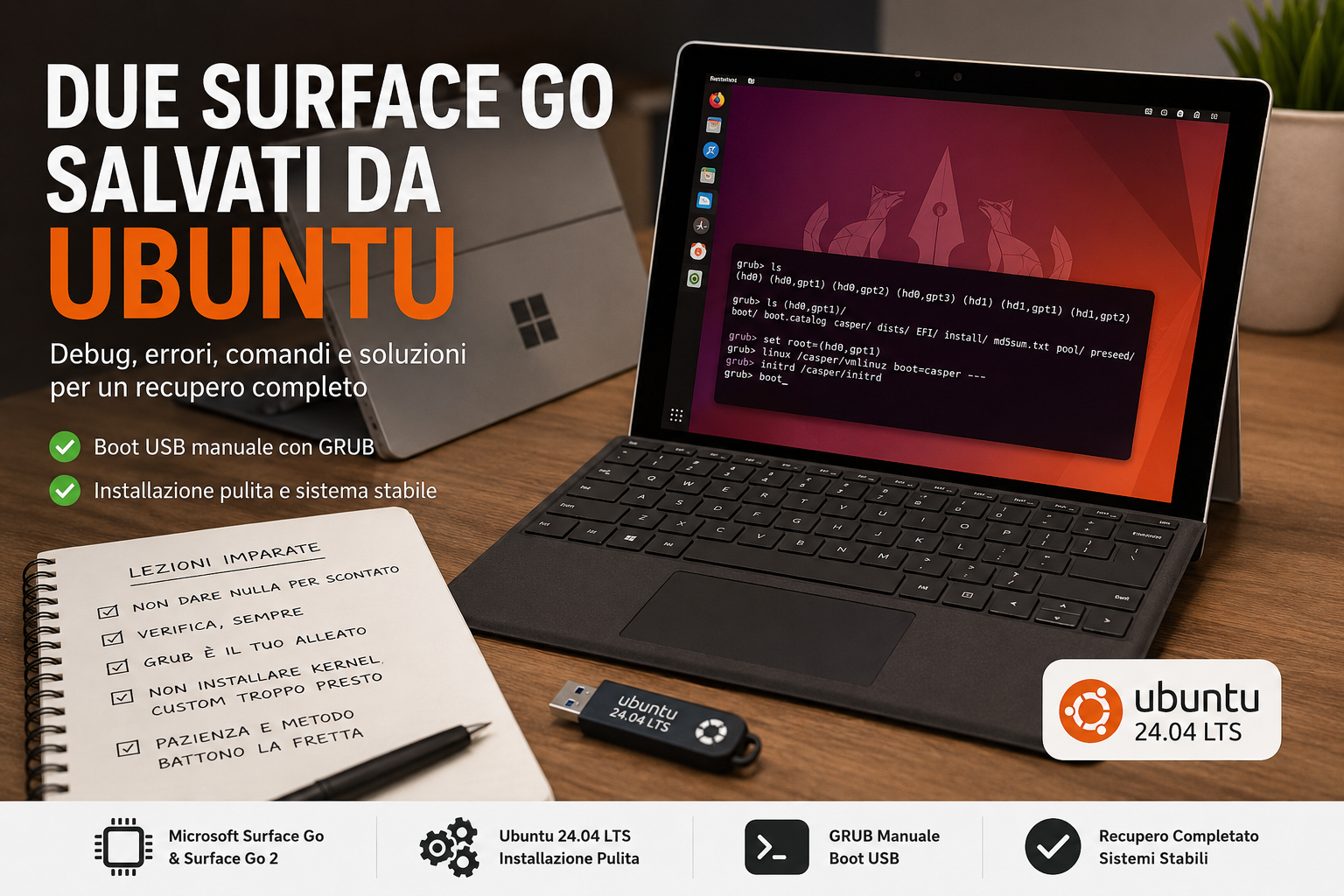
Two Surface Go Devices Saved by Ubuntu: A Recovery Story (and the Pitfalls to Avoid)
Introduction
Over the past few days, I recovered two Microsoft Surface Go devices and gave them a second life with Ubuntu.
The goal was simple: turn two rarely used tablets into lightweight devices for web browsing, YouTube, Netflix, and basic productivity.
The reality turned out to be much more interesting.
One of the devices installed without any major issues. The other became a genuine forensic investigation involving UEFI firmware, GRUB, custom kernels, stubborn USB boot problems, and installations that initially seemed beyond recovery.
This article explains what happened, the mistakes that were made, how we diagnosed them, and how we ultimately recovered both devices.
The First Surface Go: When Simplicity Wins
Initial Situation
The first Surface Go had already been partially prepared for Ubuntu.
Several issues had emerged during previous attempts:
- unreliable USB booting
- incomplete installations
- leftover partitions
- errors during disk preparation
The breakthrough came by using:
- Ubuntu 24.04 LTS
- Balena Etcher to create the USB installer
- a completely clean installation
During disk preparation, we verified that the internal eMMC had actually been wiped:
sudo fdisk -l /dev/mmcblk0The disk showed a new GPT partition table with no leftover partitions.
A standard installation was then performed:
- Interactive Installation
- Default Selection
- Erase Disk
Result
Ubuntu installed successfully.
After the first reboot:
- Wi-Fi worked
- the Surface keyboard was recognized
- the touchscreen worked
- the mouse worked
The only remaining steps were:
- disconnecting and reconnecting the Type Cover
- reconnecting to Wi-Fi
- completing system updates
There was no need to use Linux-Surface.
The Second Surface Go 2: The “Cursed” Machine
The second device was much more complicated.
Initial Situation
Ubuntu was already installed.
A Linux-Surface kernel had later been installed.
After some testing and modifications:
- GNOME no longer started
- the system only booted into a TTY
- USB booting appeared impossible
- a previous shutdown involving premature removal of the USB drive had caused a kernel panic
The device appeared to be stuck.
First Mistake: Assuming USB Boot Was Broken
The initial assumption was simple:
“The Surface can’t see the USB drive.”
In reality, that wasn’t true.
Checking from Linux:
lsblkclearly showed:
sdawhich represented the USB drive.
The Surface firmware also displayed:
USB Storageas the first boot device.
Therefore:
- the USB drive was detected
- the firmware recognized it
- USB booting was enabled
The problem was elsewhere.
Analyzing the Surface Firmware
Checks performed in the UEFI firmware showed:
Security
Secure Boot:
DisabledBoot Configuration
USB Storage
Windows Boot Manager
Internal Storage
USB was already in the first position.
Additionally:
Enable Boot from USB deviceswas enabled.
The firmware was therefore configured correctly.
The False Lead
Even when forcing boot using:
Volume -during startup, the system continued loading Ubuntu installed on the internal eMMC.
It looked like a USB issue.
In reality, it wasn’t.
Verifying the USB Drive Contents
By manually mounting the USB drive:
sudo mount /dev/sda1 /mnt/usbwe verified the presence of the installation files:
EFI
boot
casper
install
pool
ubuntu
and the EFI files:
find /mnt/usb -iname "*.efi"Output:
bootx64.efi
grubx64.efi
mmx64.efi
The USB drive was valid.
The Decisive Discovery
Through GRUB, we entered the console:
grub>and listed the available devices:
lsSimplified output:
(hd0)
(hd0,gpt1)
(hd0,gpt2)
(hd0,gpt3)

(hd1)
(hd1,gpt1)
(hd1,gpt2)
At that point, we identified:
USB Drive
ls (hd0,gpt1)/Output:
boot
casper
EFI
install
pool
ubuntu
Internal Disk
ls (hd1,gpt2)/Output:
bin
boot
etc
home
usr
var
We had finally identified both devices.
Manually Booting the Live USB
Once the correct partition had been identified:
set root=(hd0,gpt1)Load the kernel:
linux /casper/vmlinuz boot=casper ---Load the initrd:
initrd /casper/initrdStart the boot process:
bootThe Live USB started immediately.
This proved that:
- the USB drive was valid
- the firmware could see the USB drive
- the problem was in the automatic boot process
Things NOT to Do
1. Install Linux-Surface Too Early
First, verify that standard Ubuntu is stable.
Installing custom kernels on a freshly configured machine makes troubleshooting significantly more difficult.
2. Remove Media During Shutdown
A kernel panic was likely caused by removing the USB drive before shutdown operations had completed.
Always wait until the system has fully powered off.
3. Wipe a Disk While Booted From It
When the root filesystem is:
/dev/mmcblk0p2it is not possible to completely erase the disk.
You must first boot from an external environment.
4. Assume the Firmware Is the Problem
In our case:
- firmware configuration was correct
- Secure Boot settings were correct
- boot order was correct
The issue was much more subtle.
Why Balena Etcher Helped
The images created with Balena Etcher proved more reliable on Surface devices than other tools used previously.
This does not mean other software is incorrect, but in our case Etcher produced the USB installer that ultimately enabled the recovery.
Final Result
Both Surface Go devices were successfully recovered.
Surface Go
- Ubuntu 24.04 LTS
- Touchscreen working
- Wi-Fi working
- Keyboard working
- Updates completed
Surface Go 2
- System recovered
- GRUB access restored
- USB boot manually forced
- Ready for a clean reinstallation
The Moral of the Story
When a Surface appears unable to “see” a USB drive, the USB drive is often not the real problem.
Before reinstalling everything:
- verify the firmware configuration;
- verify that Secure Boot is configured correctly;
- verify that the USB drive is actually readable;
- use the GRUB console as a diagnostic tool.
In many cases, the device can be recovered without invasive procedures.
And above all: don’t trust your first assumption. When diagnosing boot problems, the real issue is almost always one layer deeper than it initially appears.